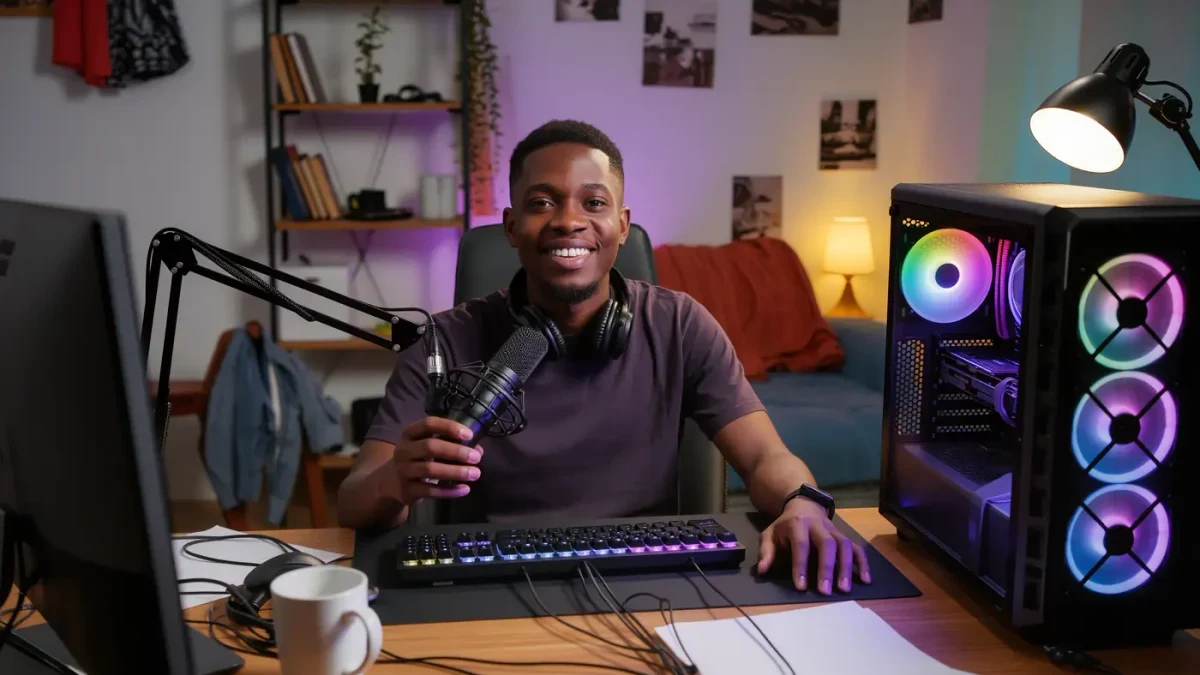
Starting on Twitch takes an evening: create an account, install OBS Studio — free, open-source broadcasting software — run its automatic setup wizard, and do one test recording before going live. Twitch requires streamers to be at least 13 years old, per the platform's terms of service, and users between 13 and 18 need parental involvement. Everything below works on any modern PC, because OBS can encode using the processor or the graphics card.
This is a technical setup guide, not career advice, and it is not affiliated with Twitch. Platform rules change — the current terms live on Twitch's own site.
What do you need before installing anything?
Four things: a Twitch account, OBS Studio from its official site, a stable upload connection — around 6 Mbps upload sustains a 1080p stream at 60 fps — and either a USB headset or a microphone you already own. A camera is optional; plenty of channels grow audio-only. Skip capture cards entirely until you stream from a separate console.
How do you set up OBS for the first time?
Install OBS and open it. When the auto-configuration wizard asks, choose the optimize-for-streaming option and set your target to 1080p and 60 fps, or 900p if the wizard reports your upload as marginal. The wizard picks an encoder and bitrate that fit your connection — accept its result for stream one and refine later. Then add your sources: a Game Capture source for gameplay, an Audio Input Capture for your microphone, and a Video Capture Device if you use a camera.
Why does the encoder choice matter so much?
The encoder compresses video in real time, and picking the wrong one either hurts your game or hurts your stream. If your graphics card is an NVIDIA RTX or AMD RX model from recent generations, use the hardware encoder — NVENC or AMF — which offloads the work and barely touches frame rates. The x264 software encoder uses the CPU instead; choose it only when the processor is strong and the GPU is old. Set the process priority so the game never competes with OBS for the same resources.
How do you protect your frame rate while streaming?
Cap your in-game frame rate below your monitor's maximum — for example 141 on a 144 Hz display — so encoding has headroom inside the frame budget. Run the game in fullscreen or borderless windowed, not exclusive fullscreen, which some capture methods cannot grab. And enable a performance readout in OBS under View, Stats: watch for skipped and lagged frames. If lagged frames climb, lower the game's graphics preset before touching stream settings; gameplay smoothness is worth more than stream resolution.
What audio setup avoids the classic beginner mistakes?
Two checks. First, add the noise suppression filter to your microphone — right-click the source, Filters — and speak at normal volume while watching the mixer; your voice should sit in the yellow zone, never pinning the red. Second, track your desktop audio separately from game audio so you can lower game sound without changing your music or notification sounds. Test with a local recording, not a live stream: hit the record button, talk for two minutes, play it back with headphones.
What should your stream info say?
Fill in the title with the game and what you are doing — vague titles get no clicks from the directory browsing. Set the category to the correct game, because that is where discovery happens. Make a simple starting-soon screen, but skip elaborate overlays for now; every hour spent in design software before your first broadcast is an hour not spent streaming.
How do you actually go live?
In OBS, open Settings, Stream, and connect your Twitch account through the built-in login — no manual key copying needed. Set a hotkey under Settings, Hotkeys to start and stop the stream so you never fumble for the mouse. Click Start Streaming, then check Twitch's own dashboard or your channel page on a phone to confirm what viewers actually see. Always verify from outside your own PC; a black screen on your end can still look fine locally.
How do you reach Twitch Affiliate?
Affiliate status — the first monetization tier, allowing subscribers and Bits — requires, per Twitch's published criteria: 50 followers, 8 hours streamed, 7 distinct broadcast days, and an average of 3 concurrent viewers, all within the last 30 days. The realistic path is a fixed schedule of two or three short sessions a week for the first month, talking whether anyone is watching or not, because silence is the main reason first-time viewers leave.
What should you improve after the first month?
Only after 10 or more broadcasts: lighting before camera quality — a single lamp behind the desk beats an expensive webcam in a dark room — then a pop filter, then scene transitions. Iterate one element at a time, and review one of your own past broadcasts each week with honest ears. The setup is solvable in a weekend; consistency is the part nobody can configure for you.
For more context, read How to Fix High Ping in Online Games.
For more context, read how to reduce input lag.
For more context, read how to improve aim in fps games.