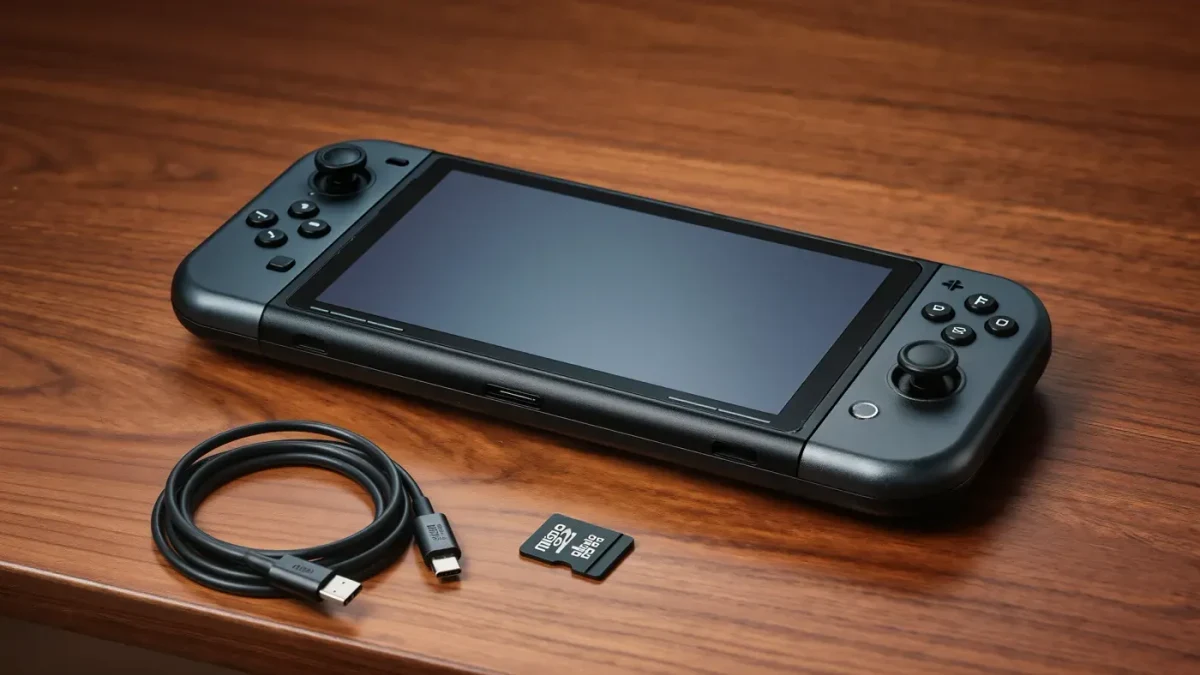
Setting up a Steam Deck takes about 30 minutes: sign into Steam, run the updates, set a PIN, pick a 40 Hz refresh mode for longer battery life, and check the storage split before installing anything large. The handheld ships with SteamOS 3, a Linux-based system, and its OLED model — released November 16, 2023 — brought a bigger battery and a brighter screen to the same setup flow. Doing a handful of steps in order saves space, battery, and reinstall time later.
This is a setup guide, not a purchase recommendation, and warranty terms depend on region — check Valve's support pages for your model before opening any settings that reset the device.
What happens at first boot?
The Deck walks you through language, Wi-Fi, and a Steam sign-in. Two things are worth slowing down for. First, apply every system update it offers — early units and long-shelved ones ship behind, and some store features misbehave on old firmware. Second, set a PIN under Settings, because it gates purchases and desktop mode.
How do you update everything?
Open Settings, select System, and press Check for Updates twice — once for SteamOS and once through Steam itself under Steam, Check for Steam Client Updates. Game mode and the store both behave better on current builds. Reboot when asked; the Deck applies some driver-level updates only at restart.
Which display settings save battery?
The OLED model can run its screen at 40 Hz instead of 60. Under Settings, Display, set the refresh rate to 40 and use the performance overlay to cap games at 40 fps. The screen draws measurably less power, and 40 fps on a small handheld looks smooth because the frame time matches the panel. For fast titles you prefer at 60, flip back per game — the setting is two presses in the quick menu.
How should you manage storage from day one?
The Deck's internal drive — 256 GB to 1 TB depending on model — fills fast, since many modern releases pass 100 GB. Do three things early. Move the default installation path for new games to the largest drive under Settings, Storage. Check the shader cache size under Storage, because some games accumulate gigabytes of cached shaders. If you buy a high-capacity microSD card, format it in the Deck under Settings, Storage, and install pick-up-and-play games there, keeping the fast internal drive for big open-world titles.
How do you get your existing library onto it?
Not every PC game runs on SteamOS. Steam's Verified, Playable, and Unsupported badges — shown on each store page and in your library — tell you which of your games were tested on the Deck. Filter your library by the Deck compatibility column before queueing downloads, so you do not spend an hour installing something that will not launch.
What is desktop mode for?
Press the Steam button, choose Power, Switch to Desktop, and the Deck becomes a small Linux PC with a trackpad-driven cursor. Desktop mode is where you browse the web, add non-Steam launchers, and use a file manager. Keep it optional: game mode handles updates, screenshots, and controller layouts better, and returning is one icon click.
Should you adjust the controller settings?
Most games map well by default, but two features deserve attention. Steam Input lets you add gyro aiming — tilt-based fine aim — to any shooter, which many players find more precise than the right stick alone. And per-game profiles mean one game's layout never affects another; browse community layouts from the controller icon in the quick menu if a default feels wrong.
Which per-game settings give the best results?
The quick performance menu — the button with three dots — holds the three levers that matter. Cap the frame rate first: 40 fps matched to a 40 Hz refresh is the sweet spot for battery; 30 caps stretch battery furthest at a cost in smoothness. Use the refresh-rate slider to match the panel to that cap. Then set a thermal power limit of around 10-12 watts for undemanding games, letting the chip idle instead of running flat out for no benefit. Lower in-game shadows and foliage draw distance before resolution; dropping resolution last keeps text readable on the small screen.
What accessories matter in the first week?
A case, because the sticks and triggers are exposed in a bag. A USB-C charger you keep where you play, since the included one stays more useful at a desk. If you plan TV play, any USB-C hub with video output connects the Deck to a television with Bluetooth controllers — the OLED dock experience is the same feature the LCD model had, just with a faster port on some setups.
How do you keep it healthy long-term?
Store the Deck between 20 and 80 percent charge if it sits unused for weeks, and let it run its battery calibration occasionally by discharging normally rather than in deep sleep forever. Clean the vents with dry air every few months. Report or return hardware faults within the warranty window — stick drift and swelling batteries are documented issues Valve's support handles, not repair projects.
For more context, read How to Use a Controller on PC for Any Game.
For more context, read manage game library storage.
For more context, read How to Reduce Input Lag When You Game.