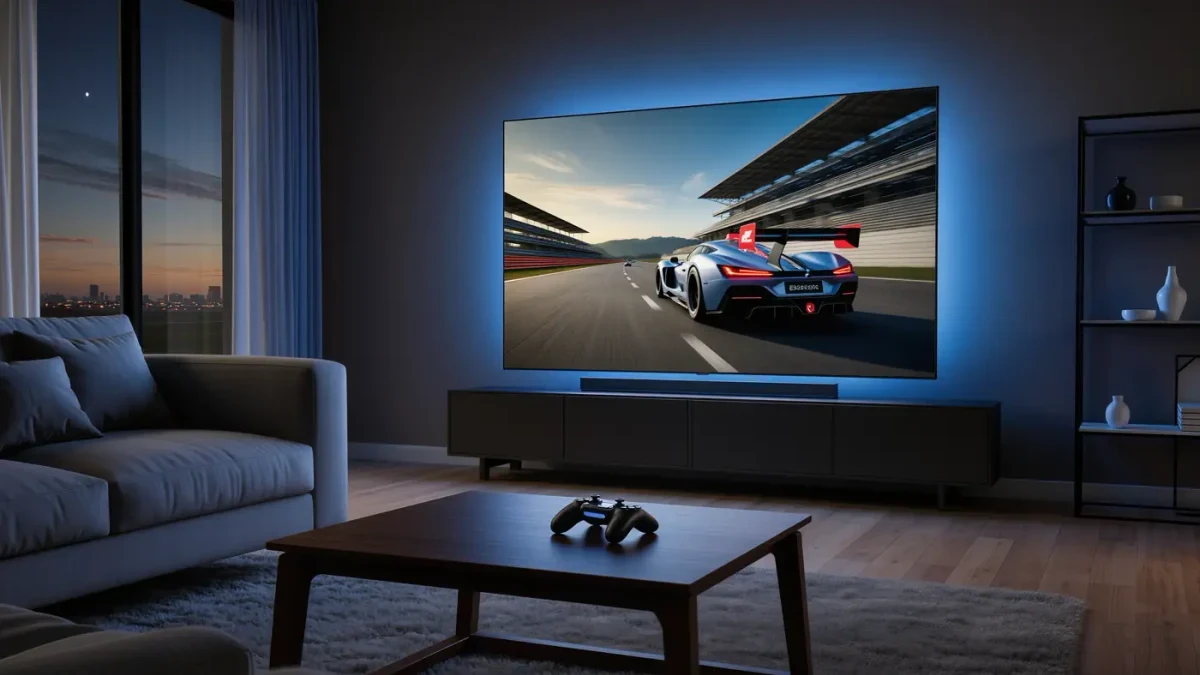
Reduce input lag by fixing the chain in order: put the display in game mode, turn off motion smoothing, raise your frame rate, and use a wired connection for controller and network. Done together, these steps commonly cut total delay by 30 to 80 milliseconds — enough that most players feel it. No single setting is magic; the total is the sum of your peripherals, your PC or console, and your screen, and each link adds its own slice.
This guide explains what to change and why. It covers perception and display settings generally, not medical advice about reaction times.
What is input lag, exactly?
It is the total time between your physical action and the result appearing on screen: the controller sends a signal, the game processes it, the device renders a frame, and the display shows it. A typical wired setup runs roughly 40-70 ms end to end; Bluetooth controllers add about 10-15 ms, and a television's default picture mode can add 50 ms or more on its own — which is why the TV is usually the first thing to fix.
Why is the display the first thing to fix?
Because default picture modes process the image for looks, and that processing costs time. Open your TV or monitor's picture menu and select Game mode — it bypasses most image processing. Then turn off any feature named motion smoothing, motion interpolation, or trumotion; these insert artificial frames and can add tens of milliseconds. On monitors, game modes are often already minimal, but check that any overdrive setting is on its standard level, not maximum, which can add artifacting without improving latency.
How does frame rate affect lag?
Higher frame rates shorten the wait between your input and the next rendered frame. At 60 fps a new frame arrives every 16.7 ms; at 120 fps every 8.3 ms. If your hardware can run a game at 120 fps, doing so roughly halves the render portion of the chain. Cap frame rates slightly below your average — for example 141 fps on a 144 Hz screen — so frame times stay even, because swings in frame pacing feel worse than a slightly lower steady rate.
Should you use V-Sync or adaptive sync?
Plain V-Sync adds latency, because it holds finished frames until the display is ready. Adaptive sync — G-Sync or FreeSync — matches the display to the GPU instead and removes tearing without the hold. On NVIDIA cards, pair G-Sync with a frame cap a few frames below the panel maximum. Turn V-Sync off entirely inside games when adaptive sync handles the display; leaving both on can reintroduce the queue.
Wired or wireless controller?
Wired, when it matters. A USB cable typically polls faster and steadier than Bluetooth, cutting 10-15 ms and avoiding interference spikes. If you stay wireless, use a 2.4 GHz USB dongle where the controller offers one — it usually polls at a fixed high rate — and keep the receiver close, not behind a metal case. Also raise the controller's polling rate in its companion software if the option exists; some ship at 125 Hz and support 250 or 500 Hz.
Do mouse and keyboard settings matter?
Polling rate matters most. A gaming mouse at 1,000 Hz reports its position every millisecond; older office mice at 125 Hz report every 8 ms. Check the specification, not the marketing — and disable any software layers that add processing, such as heavy macro suites running in the background. On the keyboard side, most modern membranes and mechanical switches register in a few milliseconds; manufacturer marketing numbers beyond that rarely translate into felt differences.
What about network lag in online games?
Network delay is separate from input lag, but it stacks on top of it and feels the same. Use Ethernet instead of Wi-Fi where possible — a wired connection removes the jitter that makes wireless feel inconsistent even when its average speed looks fine. Close large downloads and cloud backup tasks on the same network during play. If delay stays high, check whether the game offers a server-ping readout and choose the lowest region rather than the default.
Which settings barely matter?
Most of them. GPU driver control panels, special USB ports marketed to gamers, and expensive cables change nothing measurable. HDMI and DisplayPort cables either support a signal mode or they do not. Spend your effort on the four links that carry real milliseconds — display mode, frame rate, controller connection, network — and ignore the rest.
How do you measure whether it worked?
Some games and consoles show an end-to-end latency figure in their diagnostics. Otherwise, compare before and after with a slow-motion phone camera pointed at the screen while you tap an input — count the frames between your finger moving and the on-screen response at 240 fps recording, roughly 4 ms per frame. It is a rough tool, but it shows real differences and keeps the hunt grounded in numbers instead of feel.
For more context, read How to Fix High Ping in Online Games.
For more context, read how to use controller on pc.
For more context, read How to Choose a Gaming Monitor That Fits Your Hardware.